VizShelf
Notes · files · web · AI — in one place

Where every project
starts — and ends.

The tool every operating system should have had: notes and files connected in one system for organizing knowledge and planning — with the web and AI in the same place. ViPKM is that place: an outliner with tags and tasks, built-in readers for PDFs, web pages and videos, voice notes with on-device transcripts, Claude to ask about your notes, and AI flashcards that bring back what matters just before you would forget it.

See features

Offline-first — sync and Claude only when you turn them on · Mac: macOS 13 Ventura or later, Apple silicon · Windows 10 or 11, 64-bit · 11 languages · 14-day free trial · iPhone & iPad planned

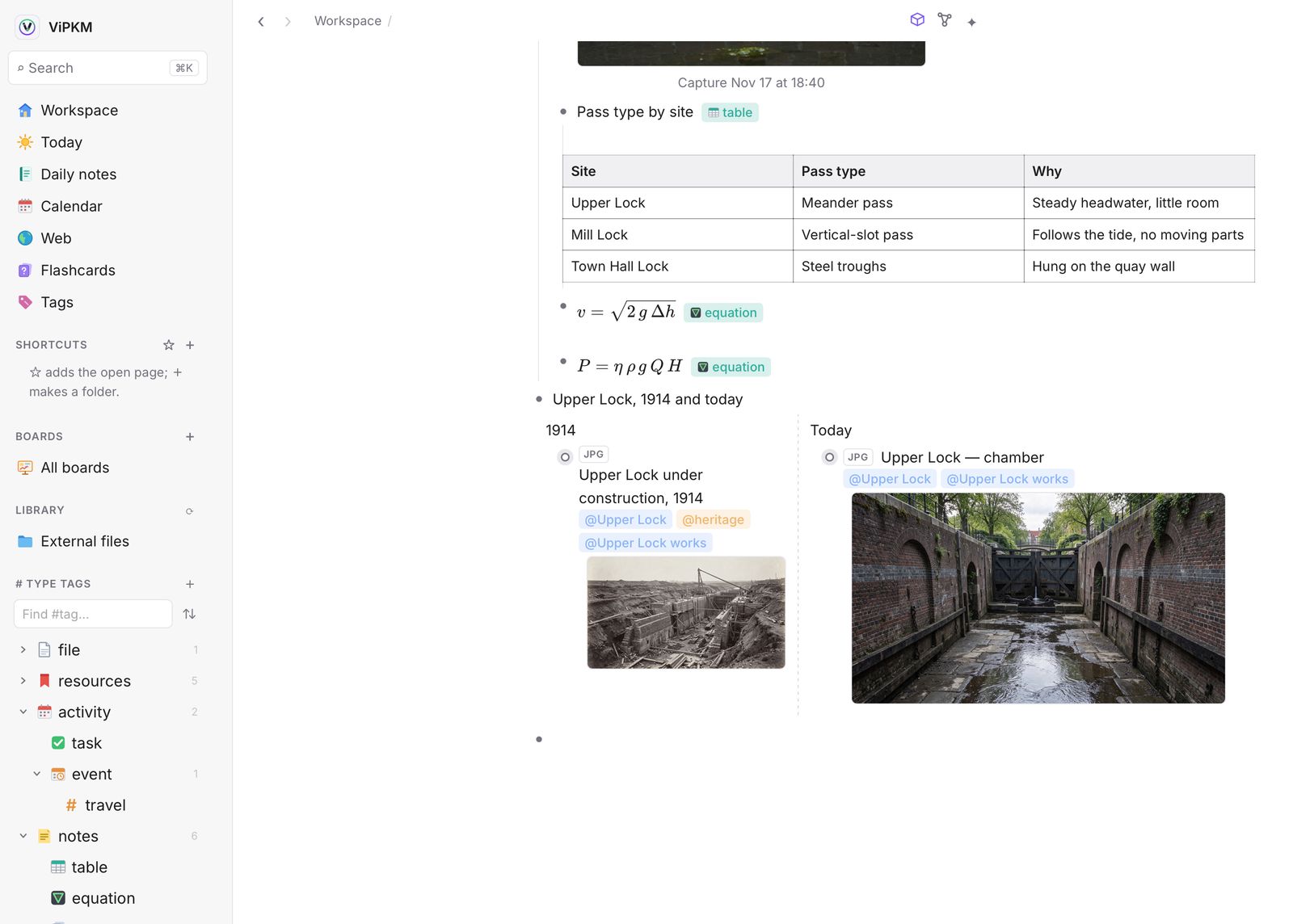
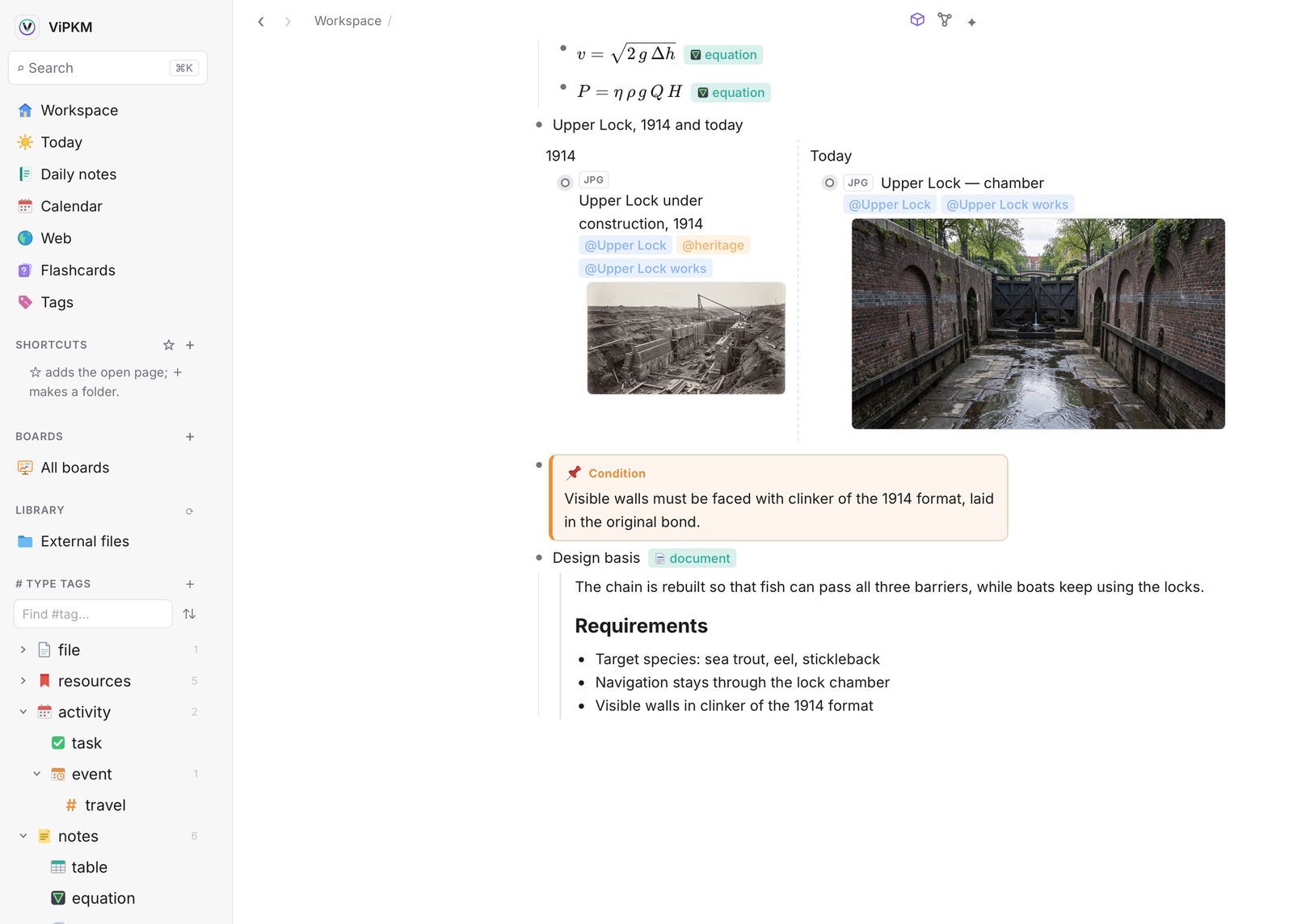
Project notes in the outline: a table of fish pass types, two formulas, and a 1914 photo of the Upper Lock beside one from today
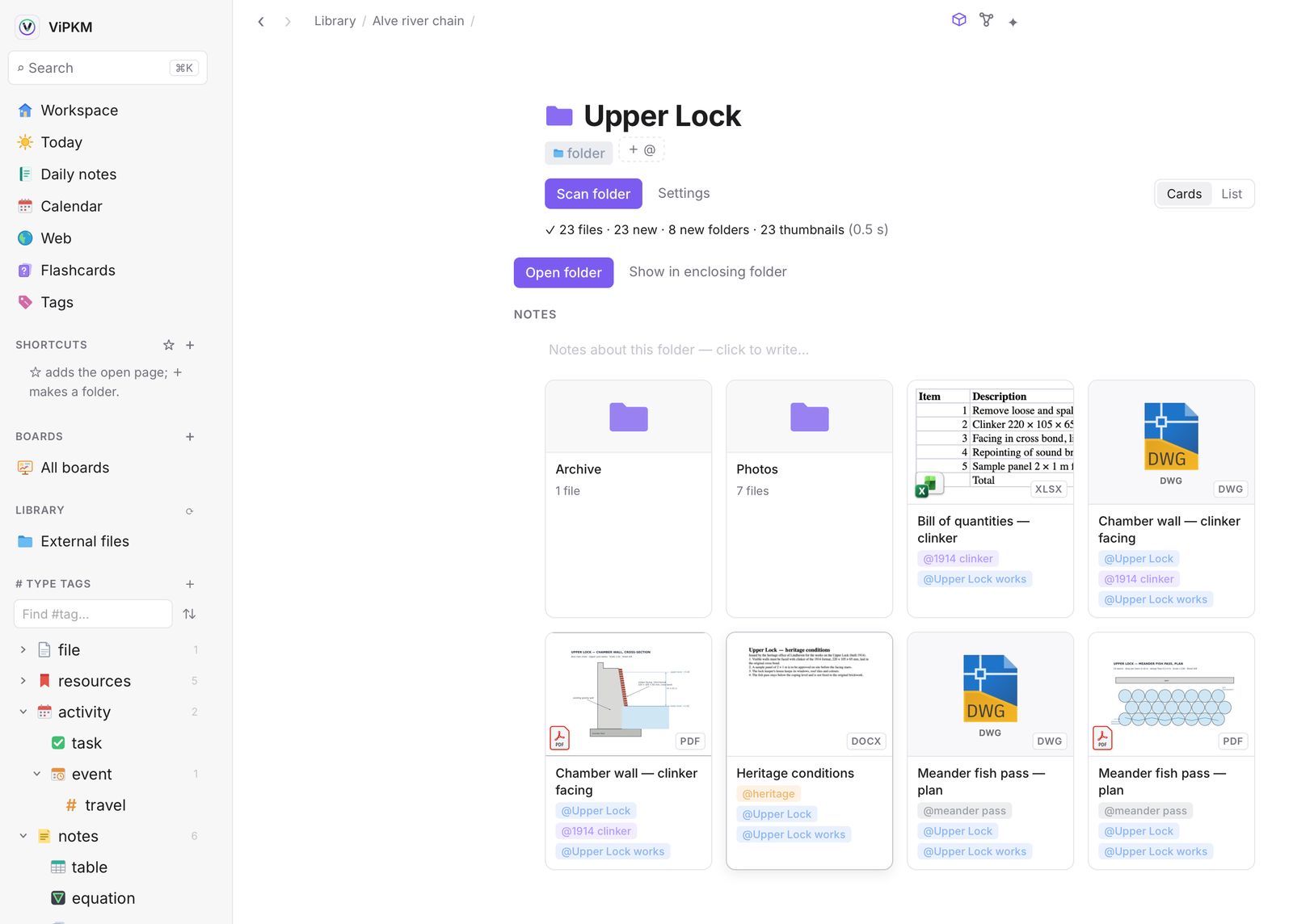
The Upper Lock folder from your drive as cards: drawings, PDFs, a spreadsheet and a Word file, each with its tags

Your own folders, browsed as galleries — with notes on every folder and file.

In 60 seconds

See ViPKM at work

A short taste, not the whole story. Recorded in the app itself: tags with fields, a PDF marked up, deep links back to the exact spot, web pages and video, your own files, AI, flashcards, the calendar, boards and the graph. Much more is in the closer look below — and still more in the app.

Shown: Lindhaven and its Alve river chain, a made-up demo project. The web page is the Wikipedia article “Fish ladder” (CC BY-SA 4.0).
New in 1.1 · 2:45 · with narration

What is new in ViPKM 1.1

ViPKM now runs on Windows as well as on the Mac, and one license covers both. Sync is your choice: iCloud Drive between Macs, a folder synced straight from computer to computer, a folder you already sync with a cloud service or a network drive, or your own WebDAV server or NAS — encrypted with your own passphrase if you like. If the same line was changed on two computers before they synced, ViPKM keeps both versions and lets you choose. Also new: Move to… for sending lines to another page, a button that hides the sidebar, a shorter format menu with Clear formatting, and faster daily notes.

Closer look at 1.0 · 6:46 · with narration

Not every part of ViPKM — it didn’t all fit in 6:46

Step-by-step guides, one for each topic, are on our YouTube channel: youtube.com/@VizShelf.

Your files, connected

Notes beside your files — not instead of them.

Most note apps only know what you put inside them. The documents your work actually depends on stay in folders the notes can't see, or have to be imported and copied.

ViPKM brings your own folder into the outline as it is. Every file gets a card and a page for notes, tags, tasks and links, and its quotes and figures become notes too. Scanning only reads your folder. The one change is one you ask for: PDF highlights are also written into the PDF, so other apps see them too.

It works with the folders on your Mac or an external drive: the file types you choose show with previews (Word, Excel, PowerPoint, DWG, PDF…), open in their own apps, and each keeps its page for notes, tags and links. In Finder or File Explorer, right-click a file › Open in ViPKM to go straight to its notes.

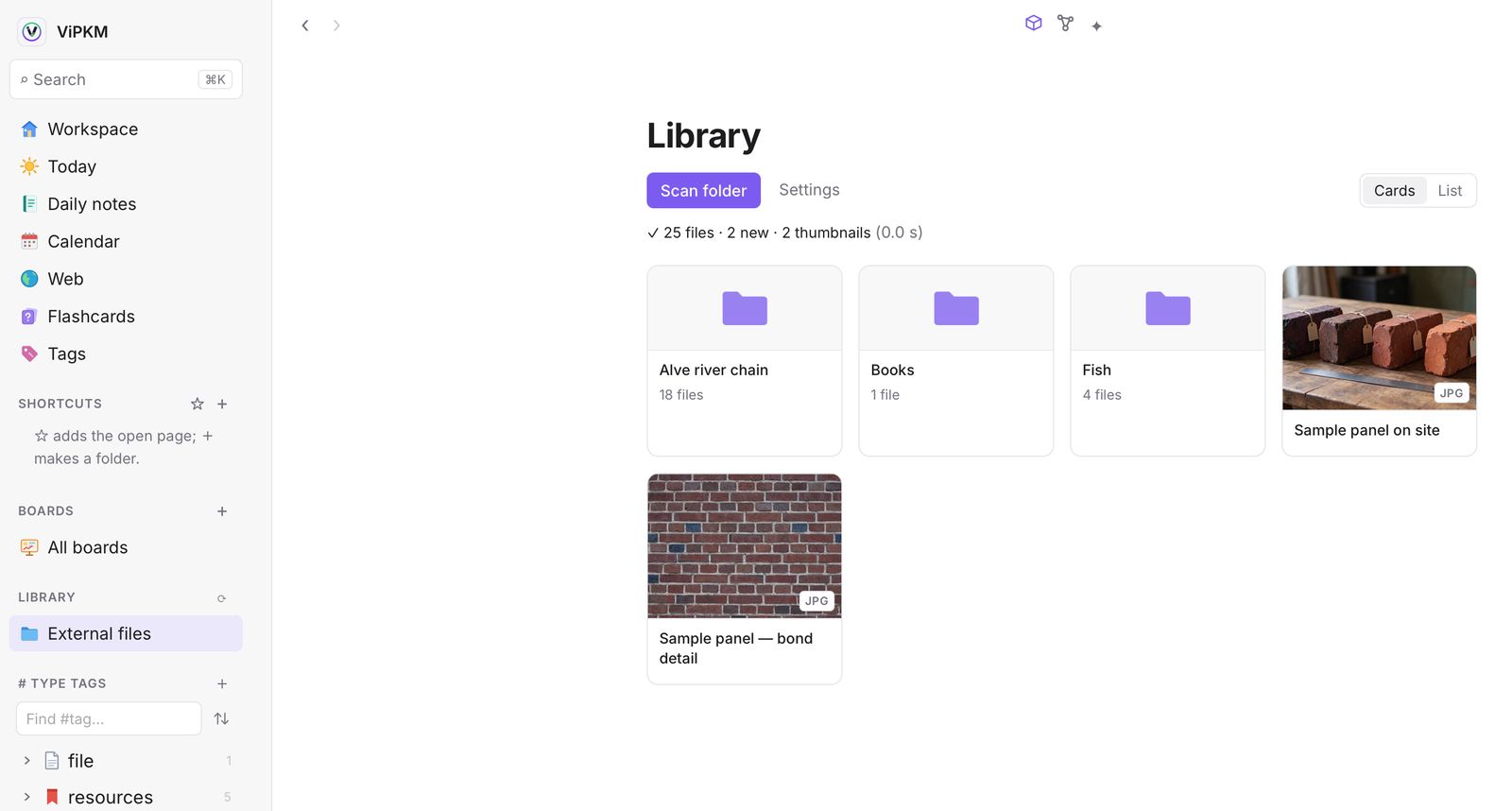
The library: your folders as cards, and two photos from the top folder
One connected system

From source to understanding, in one place

Reading, capturing, citing, thinking and remembering usually happen in separate tools that don't know about each other. Here they are one system: every capture is a node, linked to its exact source and to everything else you know.

Capture

Bring in a PDF, save a web page, open a video or record a voice note.

PDFWeb pageVideoAudio

Annotate

Quote text, clip a figure, grab a video frame at its timestamp. Each becomes a note.

QuoteClipFrame + timeTranscript

Reference

Every note keeps a link back to the exact page or moment, under a resource with full citation details.

ResourceDOIBibTeXPage / time

Connect

Tag it, link it, put it on a board or mind map beside other sources, and see it in the graph.

Tags@ linksBoardsGraph

Remember

Turn what matters into flashcards and review it just before you would forget.

FlashcardsFSRS

A quote you clip from page 42 is not a copy pasted into a document: it is a node that knows its paper, its page and its tags. Put it on a board next to a frame from a lecture video and a note from your daily page, and every piece still opens its source with one click.

Readers & capture

PDFs, web pages, video and audio — read and annotated right here

No more switching between a PDF viewer, a browser, a video player and a recorder. Each one is built in, and everything you mark becomes a note linked to the exact page, place or second it came from — with a deep link that takes you back there from any app.

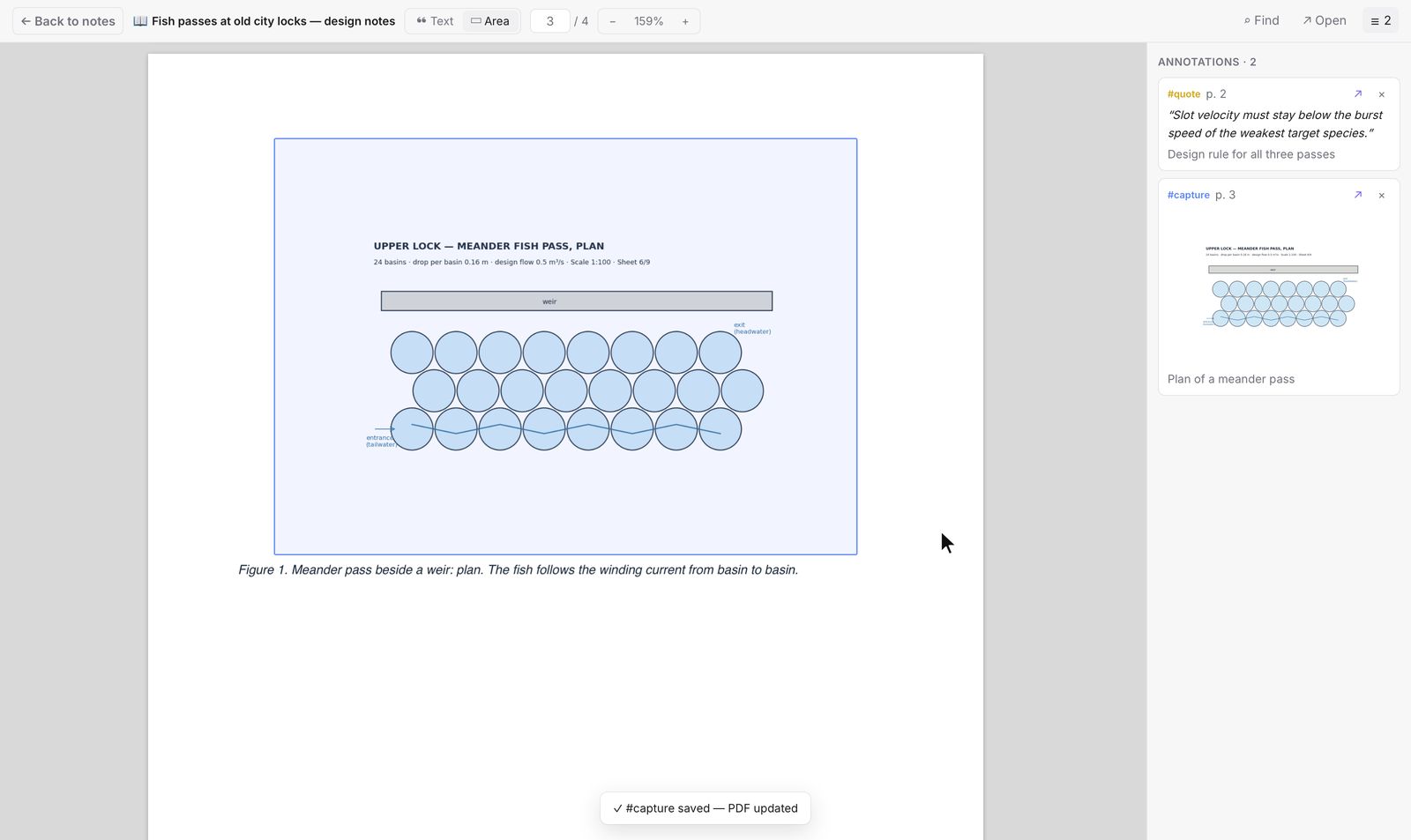
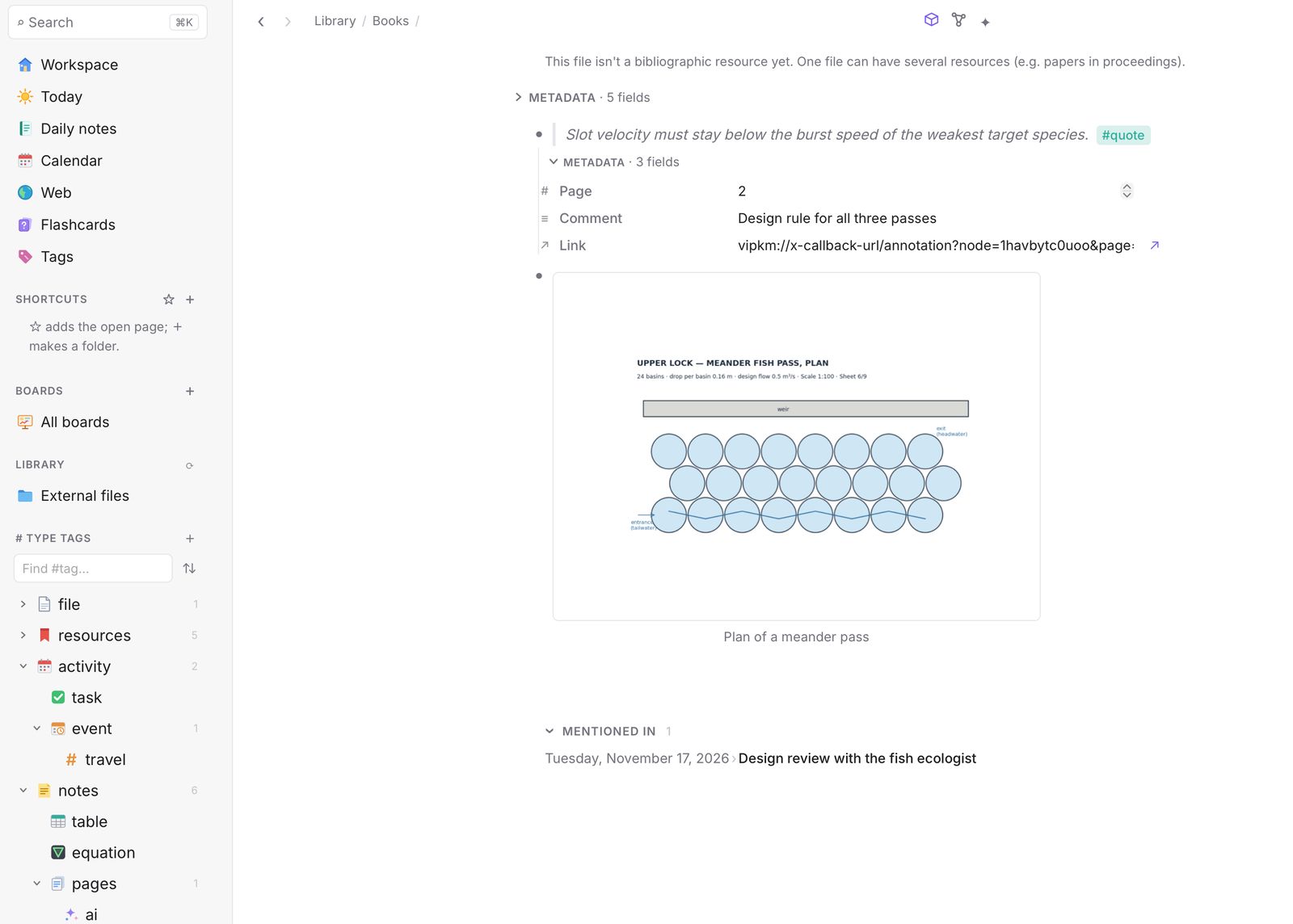
PDF reader with a clipped figure of a meander fish pass, and the list of annotations: a quote from page 2 and the clip from page 3, each with a comment
📄

PDF reader

  • Quote text, clip figures and tables as images
  • Highlights are also written into the PDF, so other apps see them
  • Find in the document; jump from any search result to its page
  • On-device OCR makes scanned PDFs searchable and quotable
  • Long books open at once and scroll smoothly
🌐

Web capture

  • Save any page with its address and thumbnail — under the line you came from, or in today's note
  • Zoom each site to a comfortable size; it is remembered
  • Highlight with comments; clip a region as an image
  • Highlights come back when you revisit the page
  • A browser bookmark sends the page you are reading straight in
  • Online PDFs go to your library in one click
🎬

Video & audio

  • Save online videos as notes with channel, date, duration and their transcript
  • Watch your own video files and grab frames with their timestamp; “play from this moment”
  • Record voice notes and lectures
  • Transcription runs on your Mac — nothing is uploaded
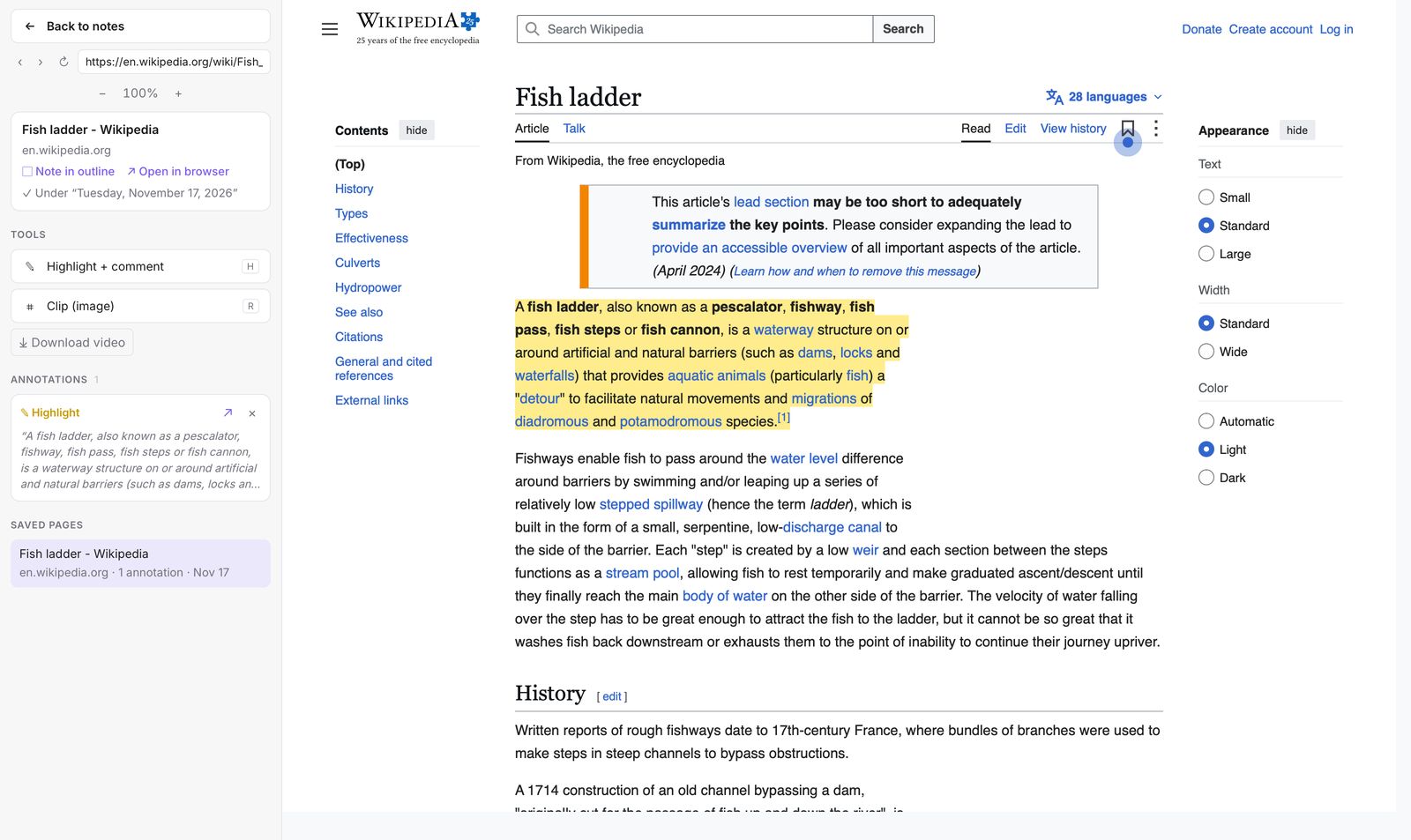
Web reader with a saved page, a highlighted passage and its annotation
Web capture — a highlighted passage, saved with the page and listed beside it.
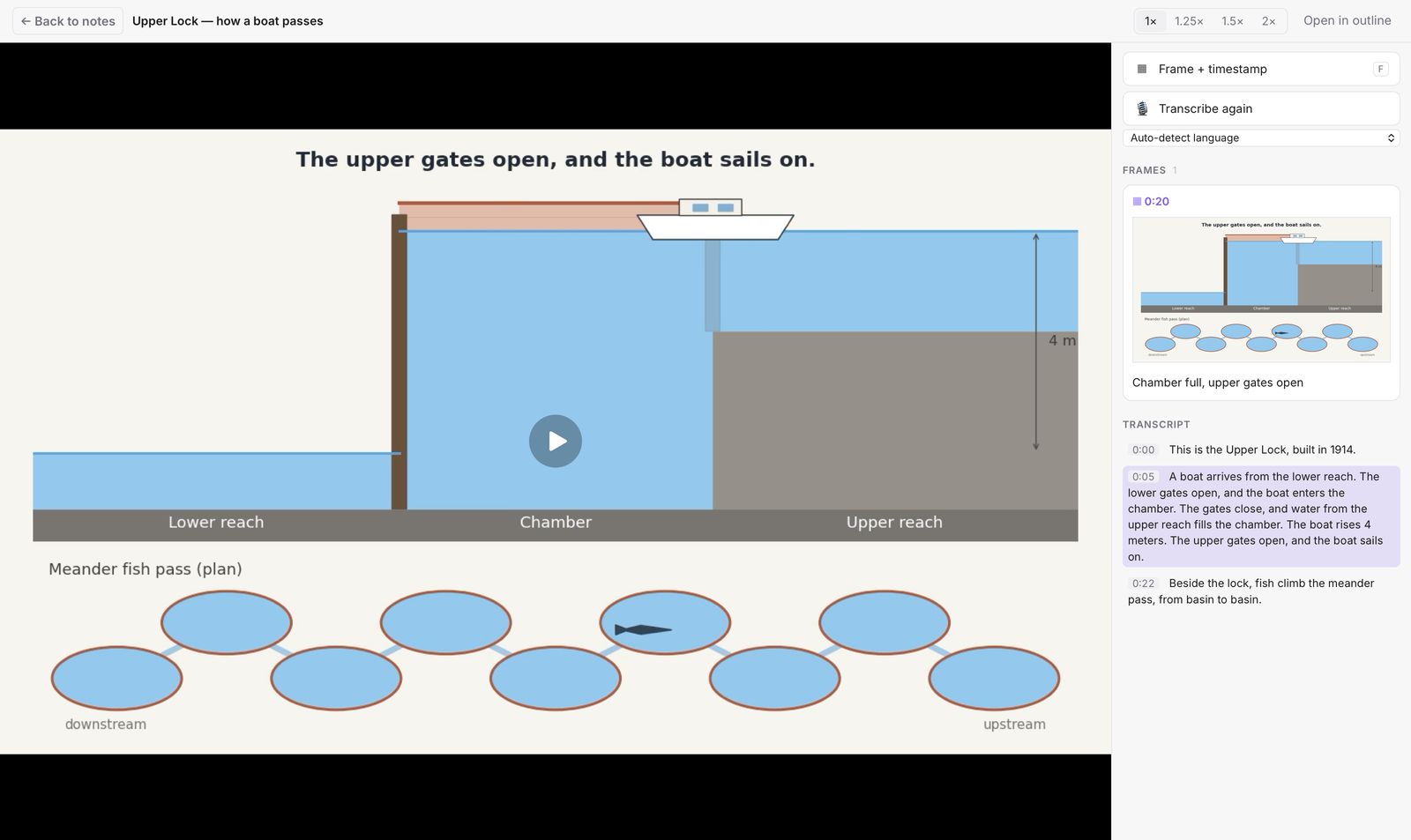
Video player with a frame captured at 0:20 and its comment, above the on-device transcript
Video — a frame captured at 0:20, above the transcript made on the Mac.
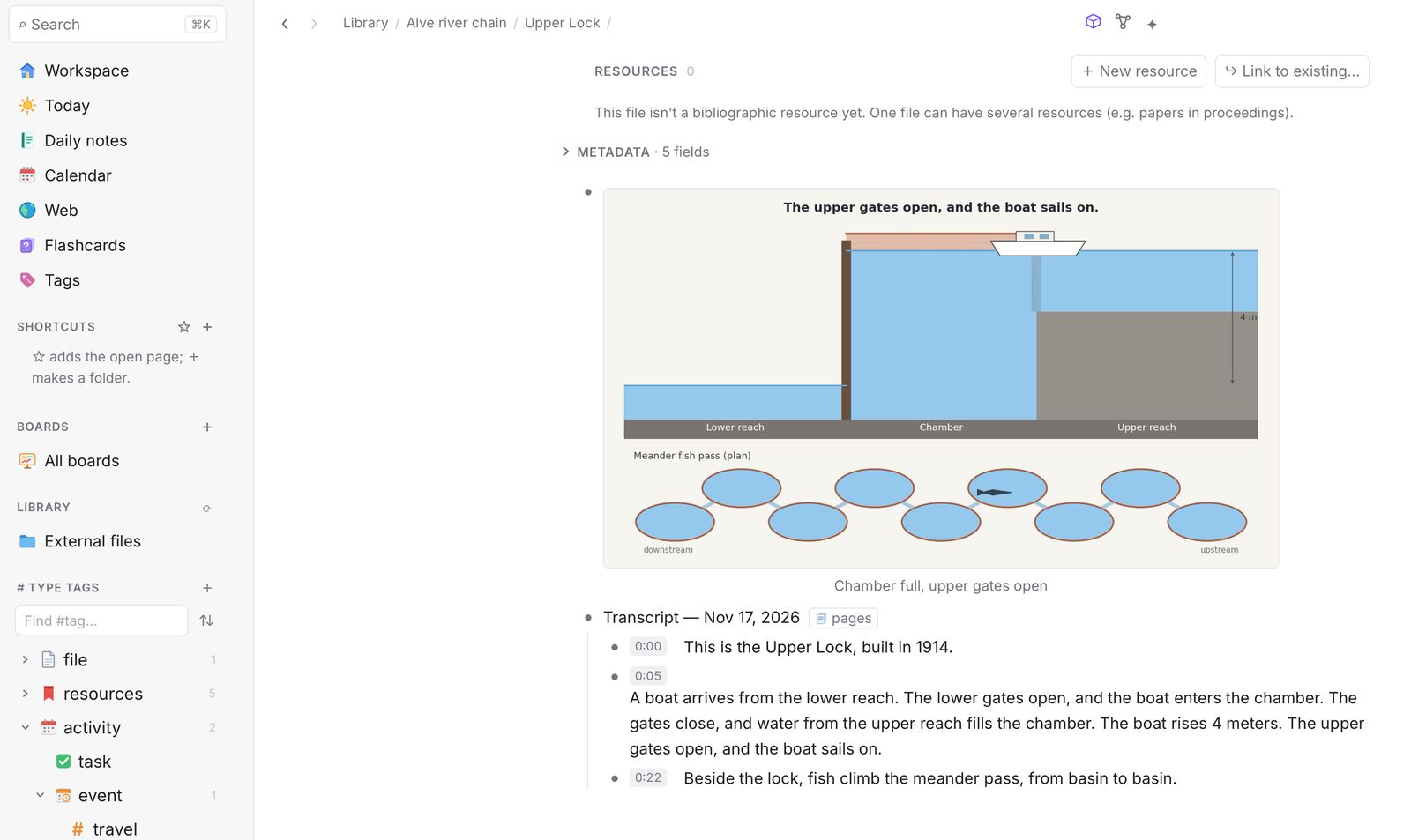
The video file’s page in the outline: the captured frame with its caption, and the transcript with times
In your notes — the frame and the transcript stay with the video, ready to search and link.

Shown: a handbook and a short video made for the Lindhaven demo project, and the Wikipedia article “Fish ladder” (CC BY-SA 4.0).

AI, when you want it

Claude, working with your own notes — two ways

Inside the app with your own Anthropic API key (kept in the macOS Keychain or Windows Credential Manager, billed by Anthropic to you), or from Claude Desktop and Claude Code through MCP, with no key at all. Both are optional; everything else works offline.

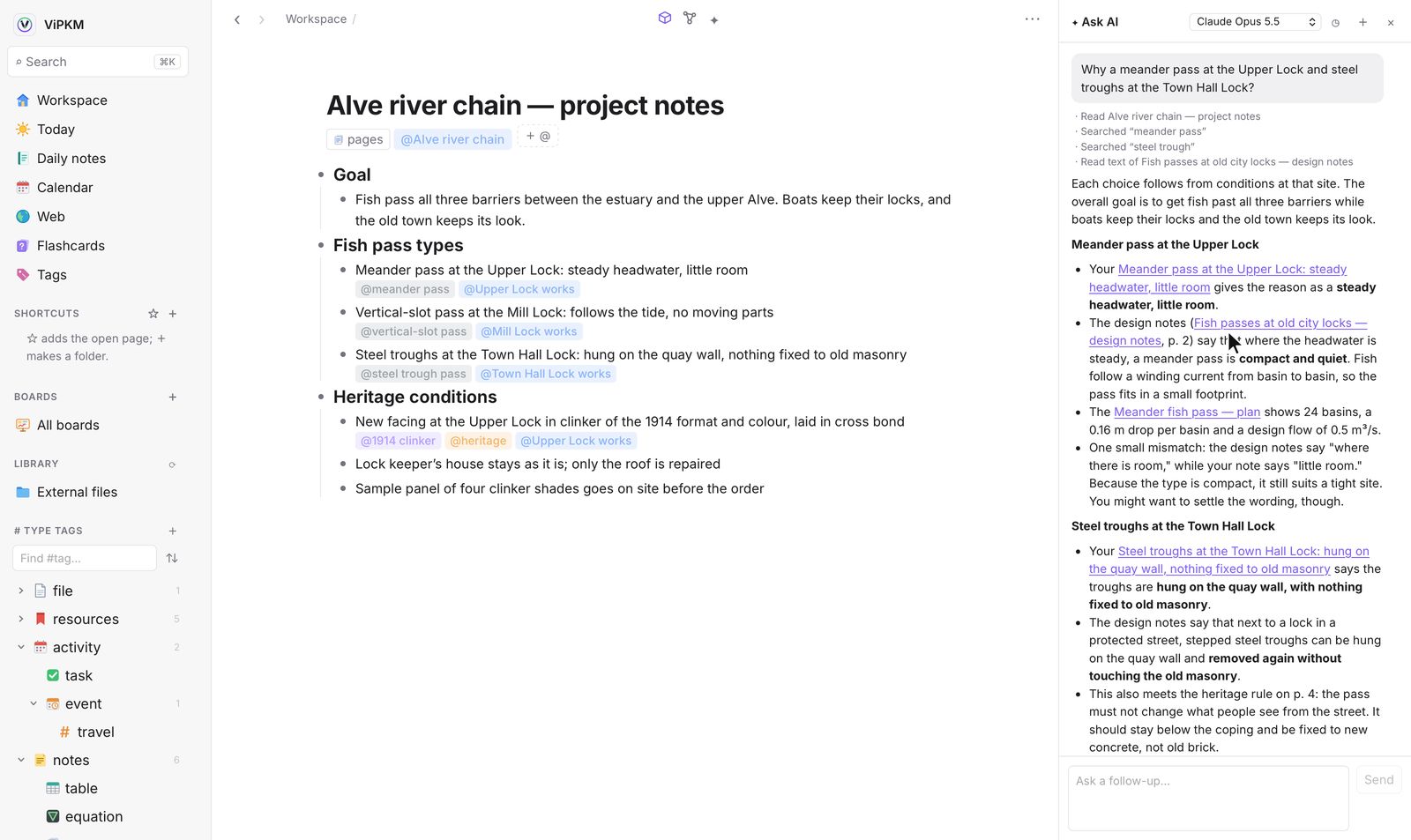
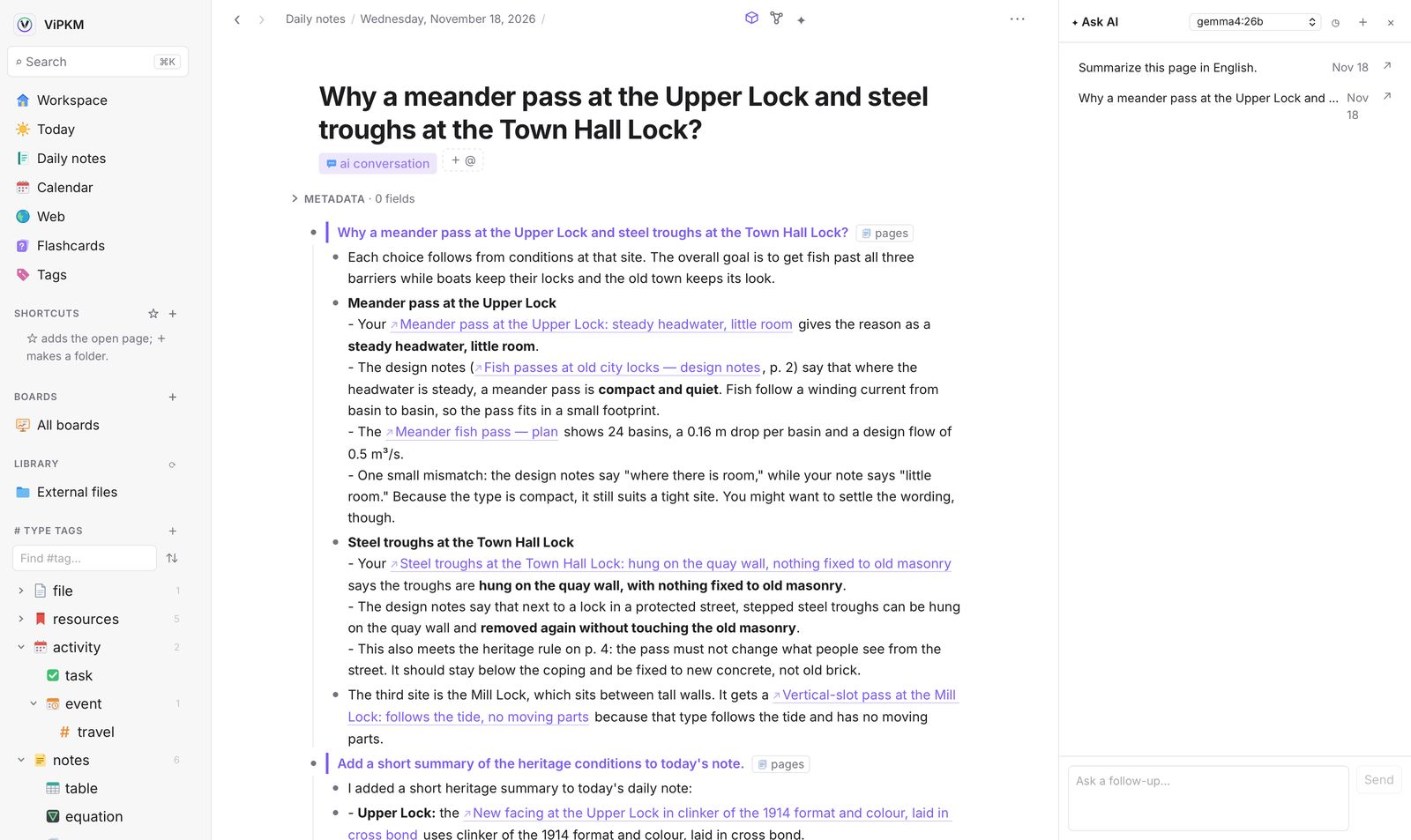
The Ask AI panel beside the project notes: it searched the library, read the pages it needed and answered with links to them
✦

Ask Claude

“What did I work on this week?” “Which tasks are open, and what for?” Claude searches and reads your pages, daily notes, tags and the text of your files, shows each step, and links what it mentions. It can add to a page only with your approval — it never edits or deletes.

🧠

Flashcards & identification

Claude writes questions from any block of notes, including its images, for spaced review. It can also identify a document when DOI and ISBN lookups find nothing, and pick “On this day” events for your daily note — always showing the cost first.

🔌

Claude Desktop & Claude Code — via MCP

Connect once and work with your notes from the Claude app, with no API key: Claude searches and reads them, and can also write: new notes tagged #ai, in today's daily note or under a page you name — and “save this chat” copies a whole conversation word for word, your questions highlighted and Claude's drawings and web pictures kept as images. ViPKM picks up the new notes by itself.

A conversation saved as a page: each question highlighted, the answer nested under it with links to the notes it used
A conversation saved word for word: each question highlighted, the answer nested under it, with links to the notes it came from.
AI flashcards · FSRS

AI flashcards: remember what you read

Mark a block of notes and Claude writes a few questions and answers from it — including from its images. You review them in a short daily session and rate each one: Again, Hard, Good or Easy.

Scheduling uses FSRS, a modern open-source spaced-repetition algorithm that is also used by other study tools. It estimates how stable your memory of each card is and how hard the card is, and brings the card back when your predicted chance of recalling it falls to the target you choose.

It rests on two well-established findings from memory research: practice spread over time is remembered better than the same practice in one sitting, and trying to recall is remembered better than reading again. That is why each card asks first and shows the answer after.

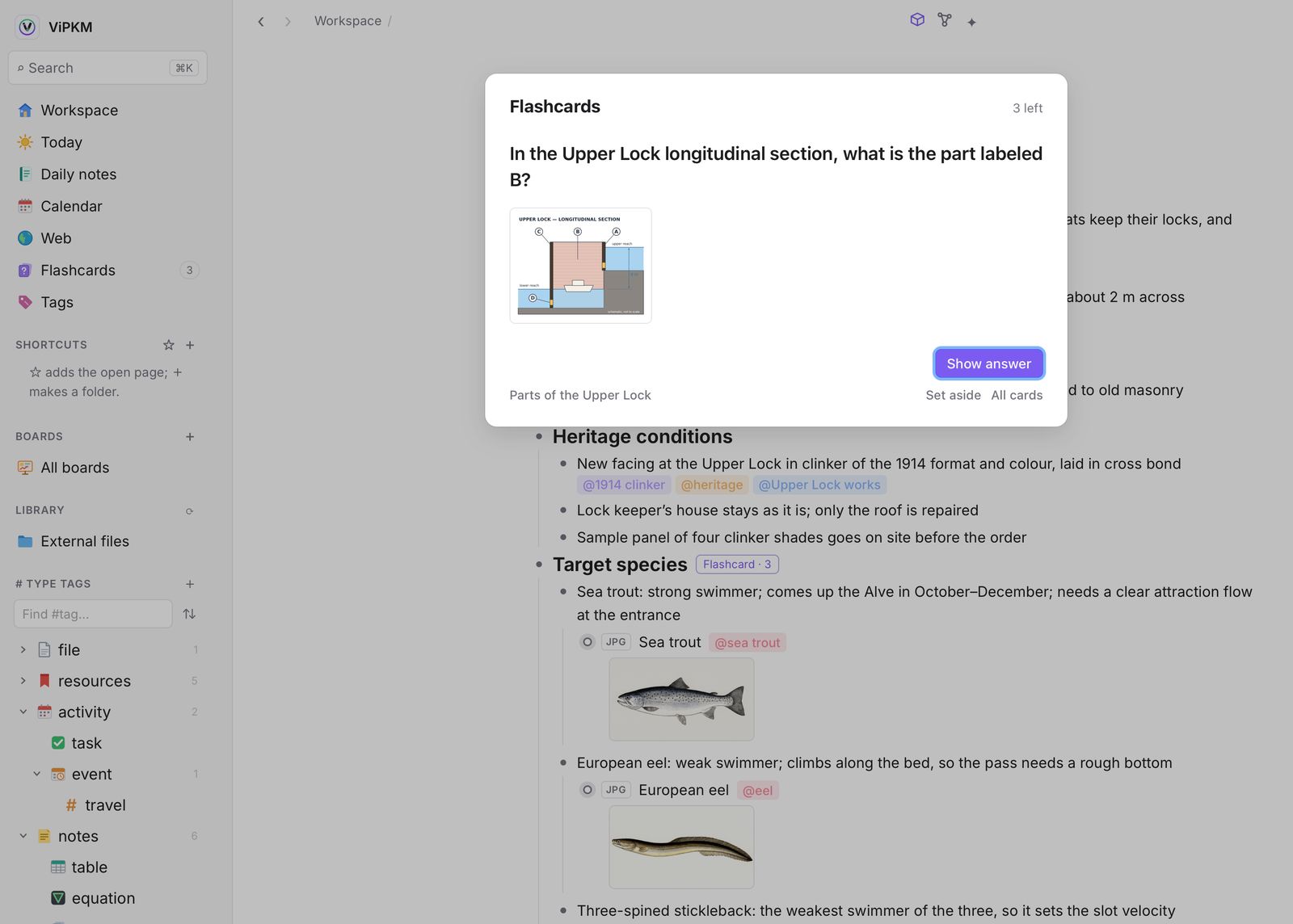
  • Cards can carry pictures — shown with the question (“what is this?”) or with the answer
  • Edit, set aside or regenerate any card; see all your cards in one overview
  • Cards are stored with the note, so they sync with it
  • You set the target recall and daily limits
A flashcard with a picture: which part of the Upper Lock section is labelled B?
Graph of linked pages

See how everything connects — with pictures

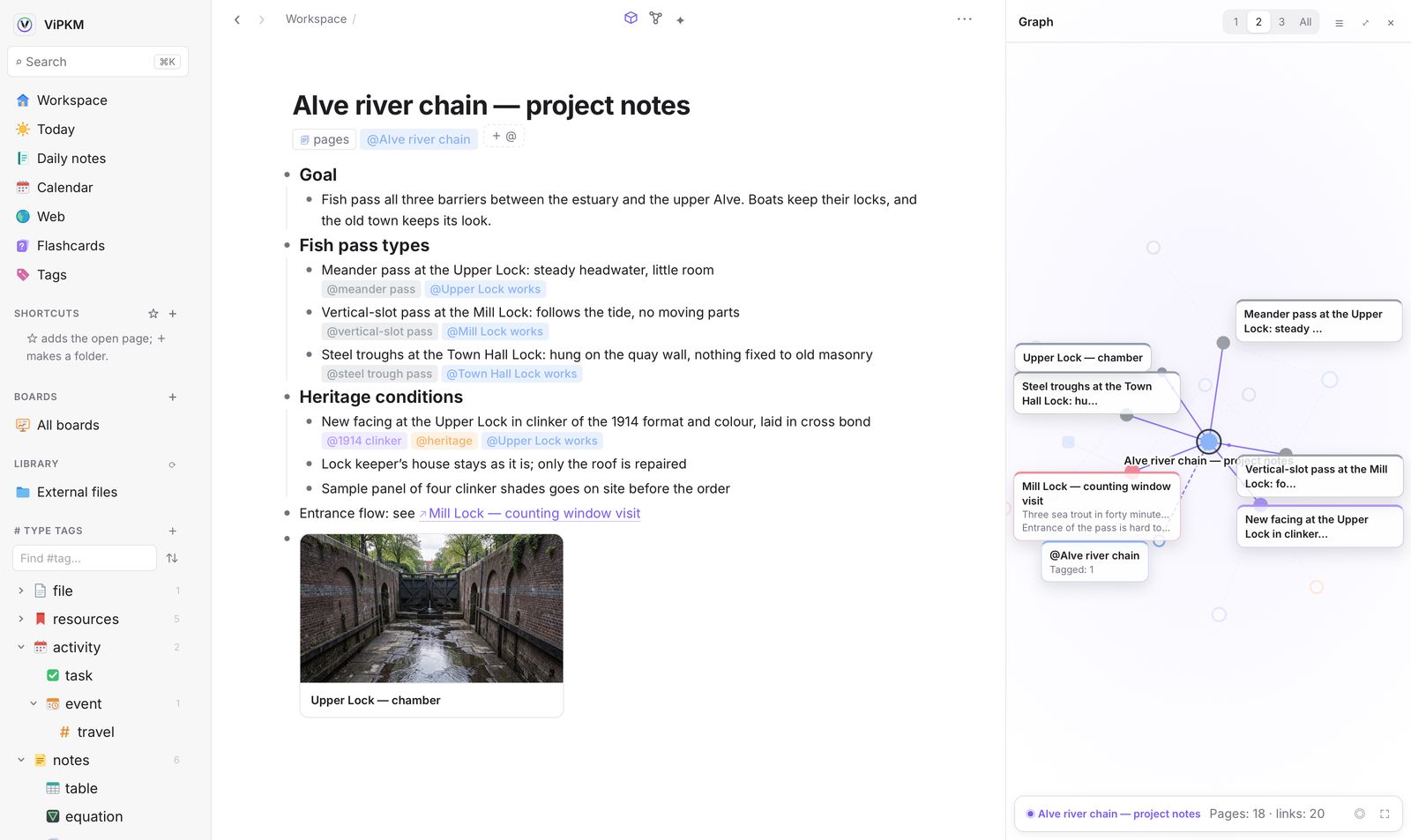
Open the graph beside any page and keep writing. Pages are dots and links are lines; the page you are on sits in the middle with its links lit. Turn on pictures and every dot shows the page's cover, the file's thumbnail or its first image — papers, maps and photos you recognise at a glance.

The graph beside the project notes: the page in the middle, its linked notes and tags around it as cards
Callouts

Frame what matters — a line and everything under it

Callouts are ordinary # types under #notes › #annotation: #quote, #highlight, #capture and #callout. Quotes from PDFs and web pages, and lines that start with >, are #quote; highlighted or coloured text makes a line #highlight; pasted images and PDF or web clips are #capture, with their caption under the picture.

  • Make your own frames — Important, Idea, Question — as subtags of #callout, each with a label, an icon and colours, and see a live preview
  • A callout holds several blocks, like a quote in Markdown: Enter opens a block inside the frame, Enter on an empty last block leaves it. Blocks can be text, an image, an equation or a table, aligned under the first line
  • Every Important line is one click away on its tag page, where the gallery shows each frame with its blocks
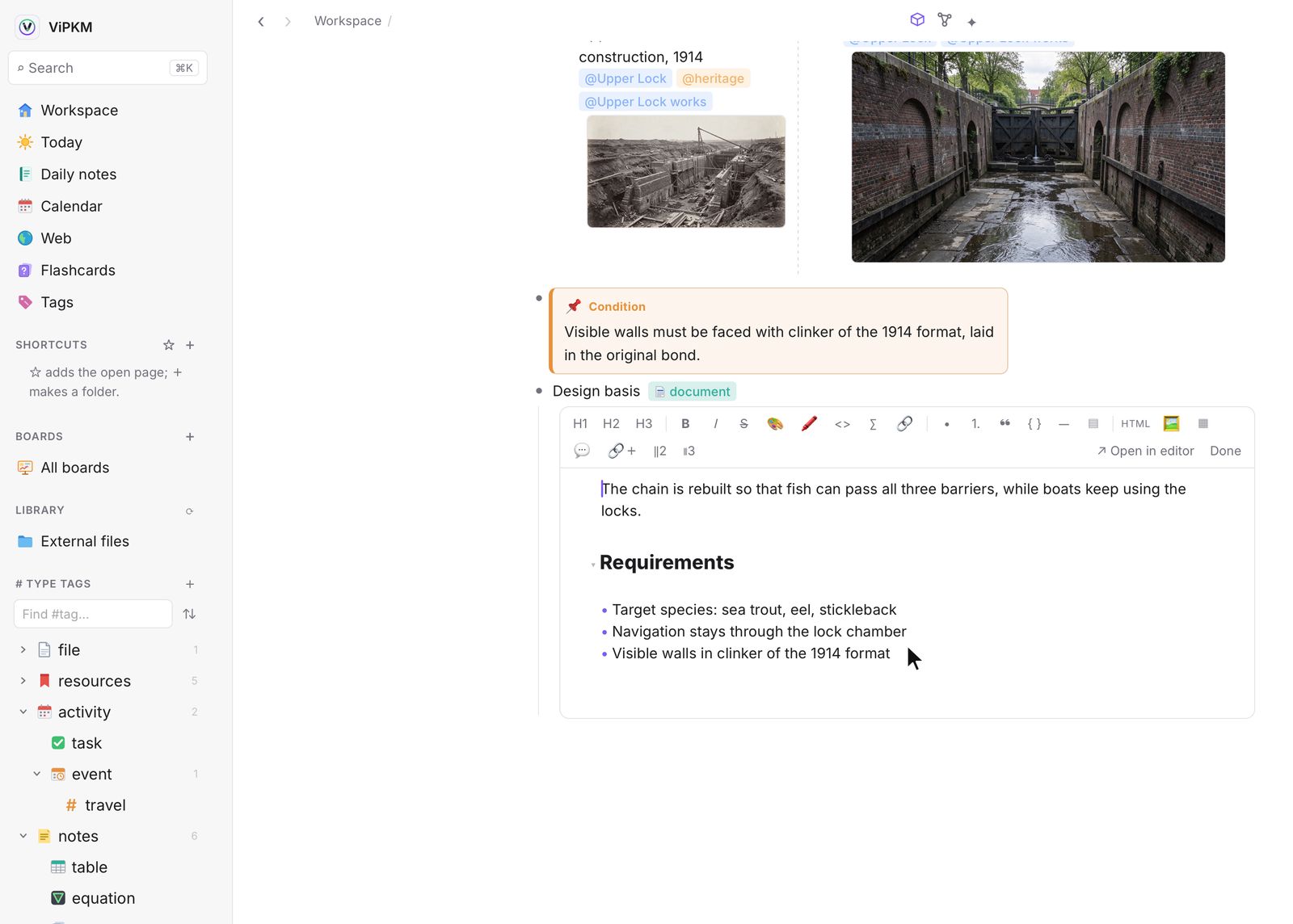
A Condition callout framed in the outline, under two photos of the Upper Lock and above a document block
The highlight tag page as a gallery: each card shows a line with its highlighted words
Every highlighted line in one place, as it looks in your outline — the same works for every callout type.
Tags with fields

Tags that know what things are

Type tags say what a node is — a #task, a #book, a #meeting — and give it fields such as dates, status or authors. Reference tags say what it is about. Tags form trees and inherit fields, so a new kind of thing is one line away.

  • Fields with values you can sort, filter and view as tables or galleries
  • Subtags inherit their parent's fields and instances — nest reference tags as deep as you like, @projects › @2026 › a project › a sub-project, and everything tagged lower also shows on every tag above
  • Mentioned in and Related show how everything connects
  • Give any tag an icon from a pack of about 150 multicolour icons — resources, sciences, hobbies, work, places, nature — or any emoji; it shows in the sidebar, before the page title and on chips. Built-in types and every resource type come with their own
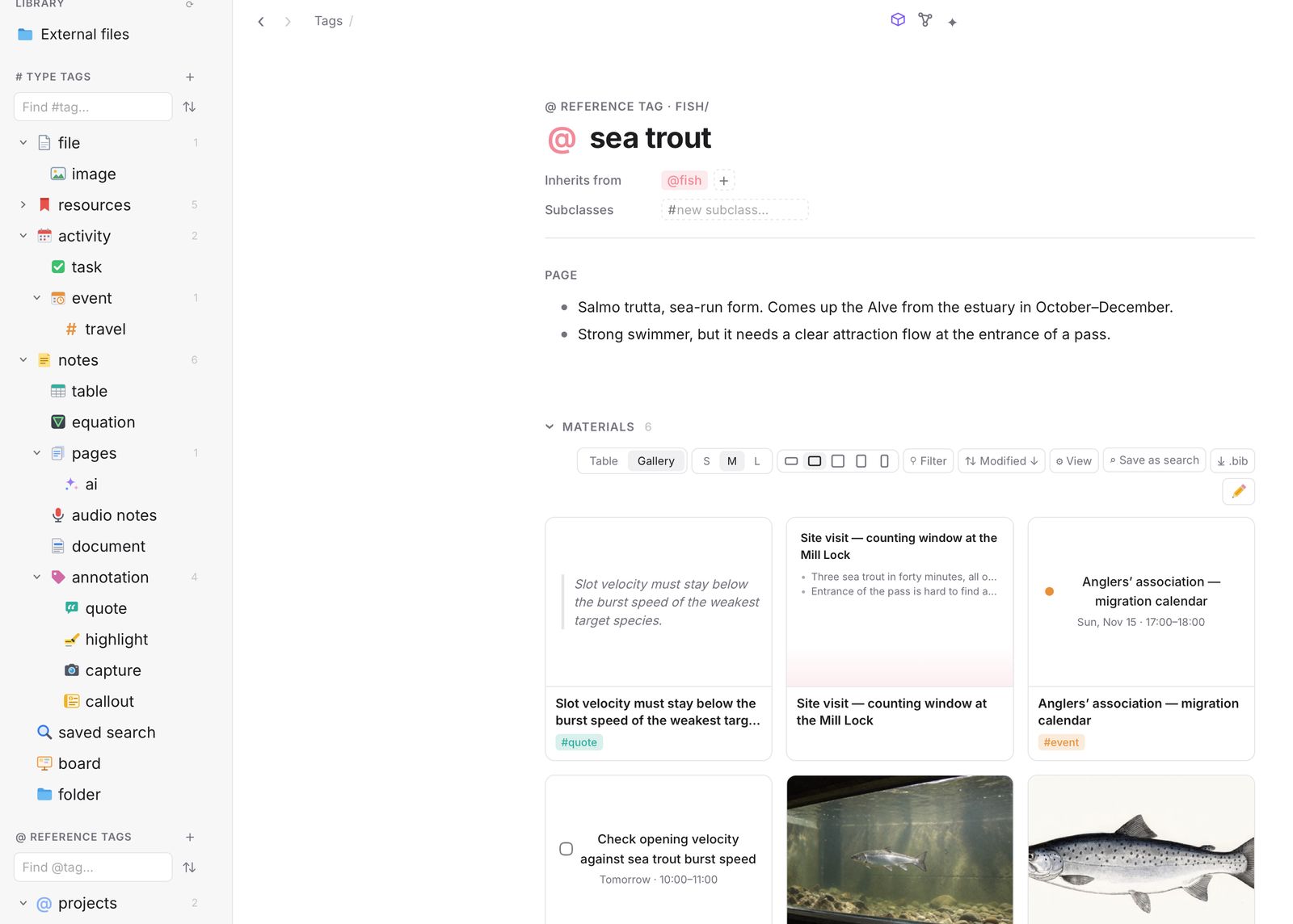
The sea trout tag page: a short description, and everything tagged with it as a gallery — a quote, a site visit, an event, a task and photos
Daily notes & calendar

Days, tasks and a calendar that are notes too

Every day has its own page with its schedule at the top. Write without deciding where things belong — tag them, and they appear in the right places. Tasks and events are ordinary rows, shown in month, week and day views.

  • Type 14:00 Call or 10:00-11:30 Meeting to schedule
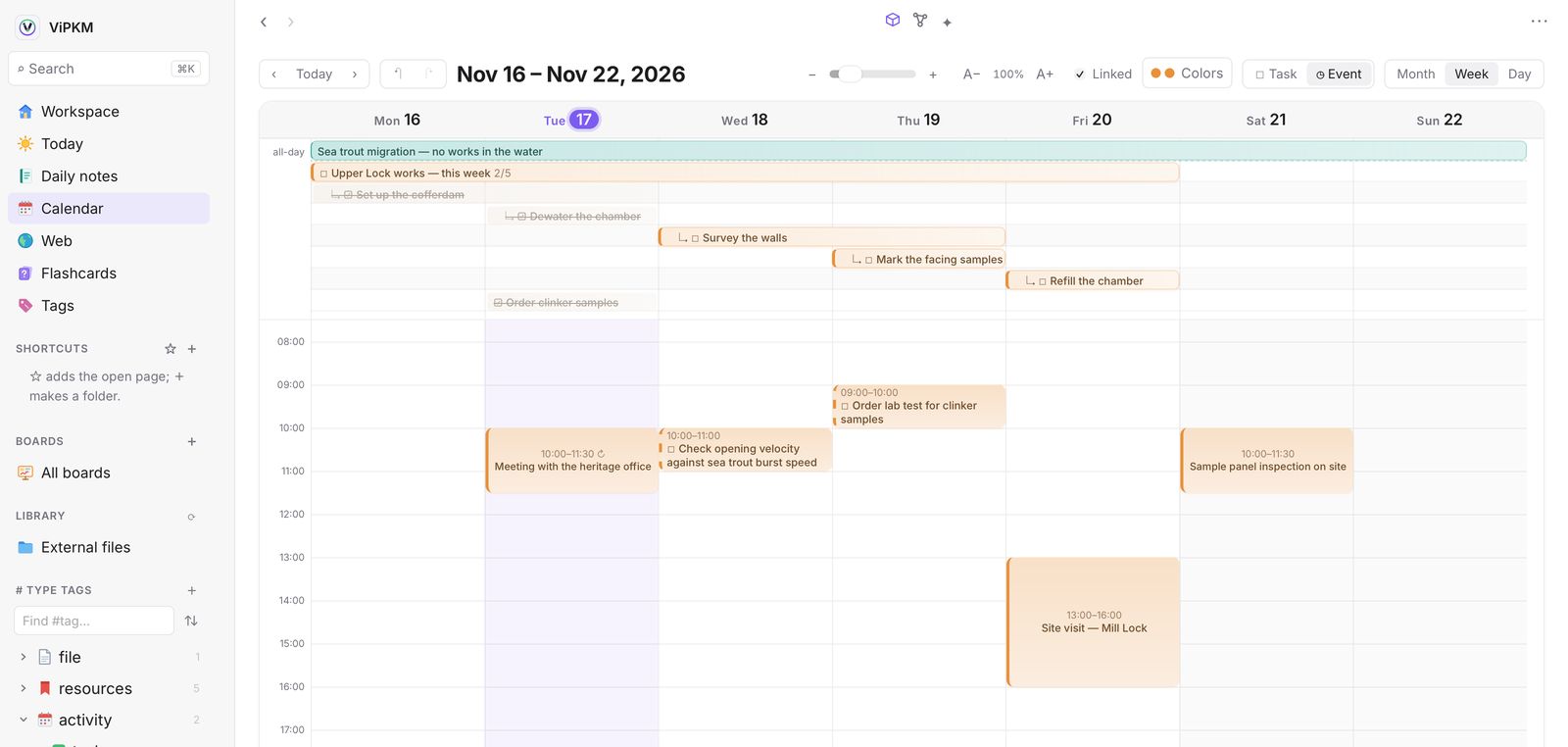
  • A project and its subtasks laid out as a Gantt chart, done steps struck through and the parent counting them (1/5)
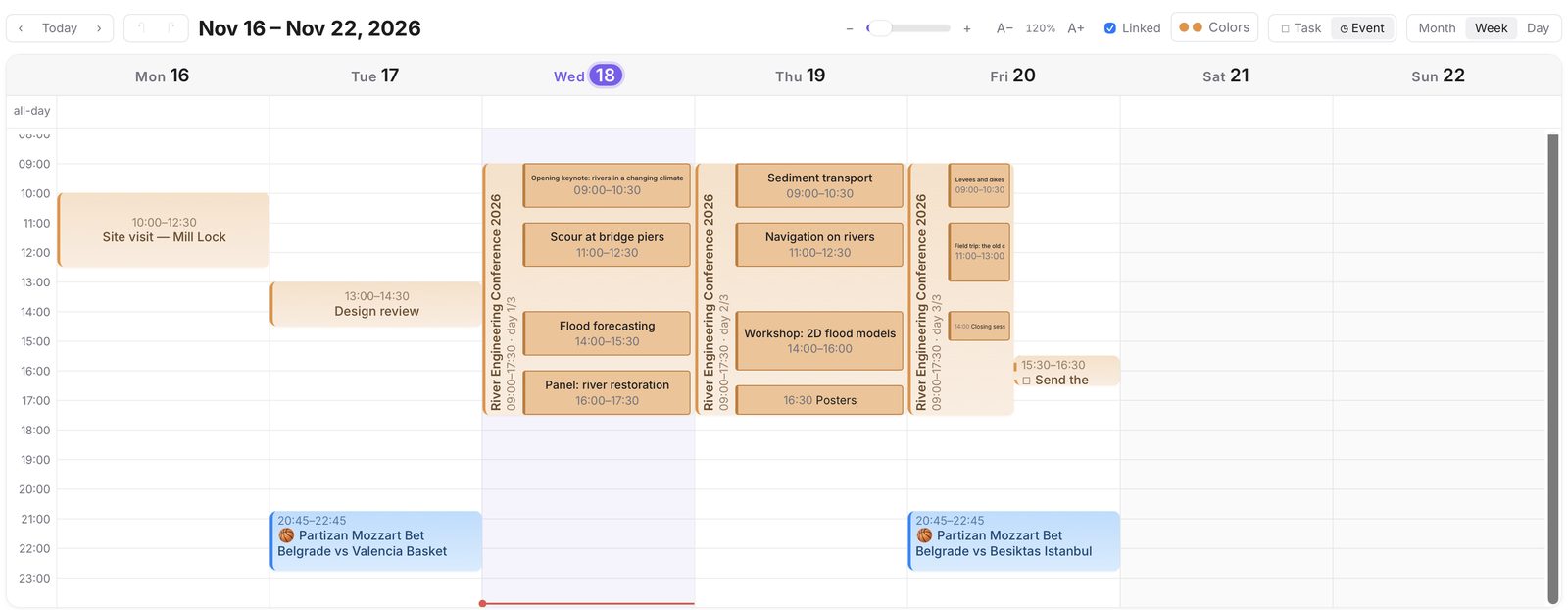
  • A conference or a course as one event with its sessions inside: each day of it shows its sessions at their times, and every session can hold your notes and tasks
  • On the Mac: your calendars from macOS Calendar — iCloud, Google, Exchange and others — shown beside your own events; read-only, or two-way for the ones you choose
Week view: the Upper Lock works and their subtasks as Gantt bars, done steps struck through, timed events below
Week view: a three-day river engineering conference with its sessions inside each day, a site visit and a design review earlier in the week, a task beside the last conference day, and two basketball games from a macOS calendar in blue in the evenings
A conference in your week — one event over three days, each day showing its own sessions; on the last day a task fits in beside them. In blue, two evening games from a calendar on your Mac, shown right next to your own events.
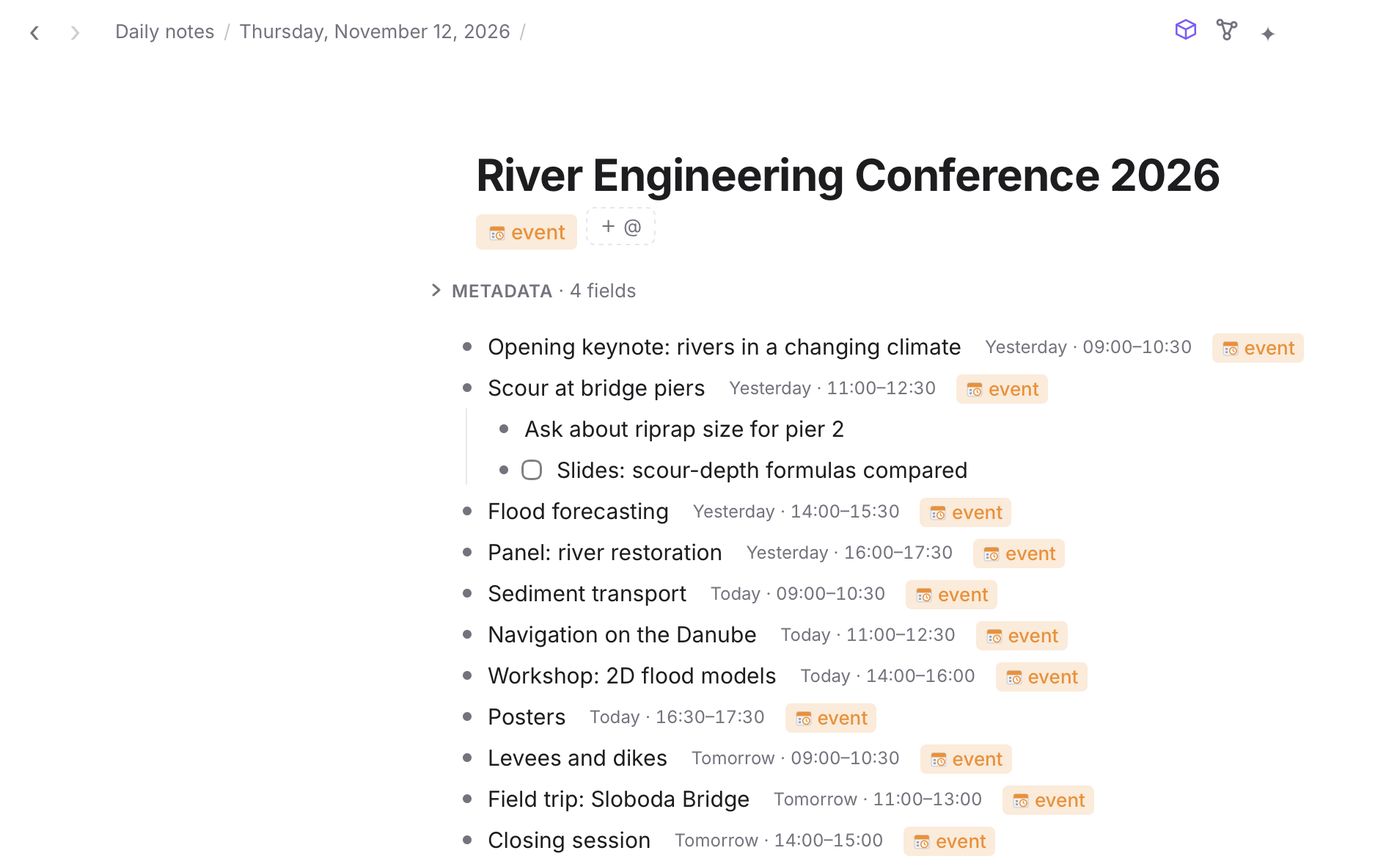
The conference event in the notes: its sessions as rows with day and time, one session with a question and a task under it
The same conference in your notes — sessions are rows under the event, with your questions and tasks for each.
Boards

Boards for thinking in space

An infinite canvas for text, LaTeX formulas, images, shapes and your materials, connected with arrows. The same blocks also read as a single document, one below the other.

  • Text, sticky notes, LaTeX formulas, pictures and diagram shapes in your own colours and fonts
  • Drop PDFs and files from your library as cards
  • Keyboard tools for select, pan, text, formula and links
  • Every board is a node: tag it, link it, find it
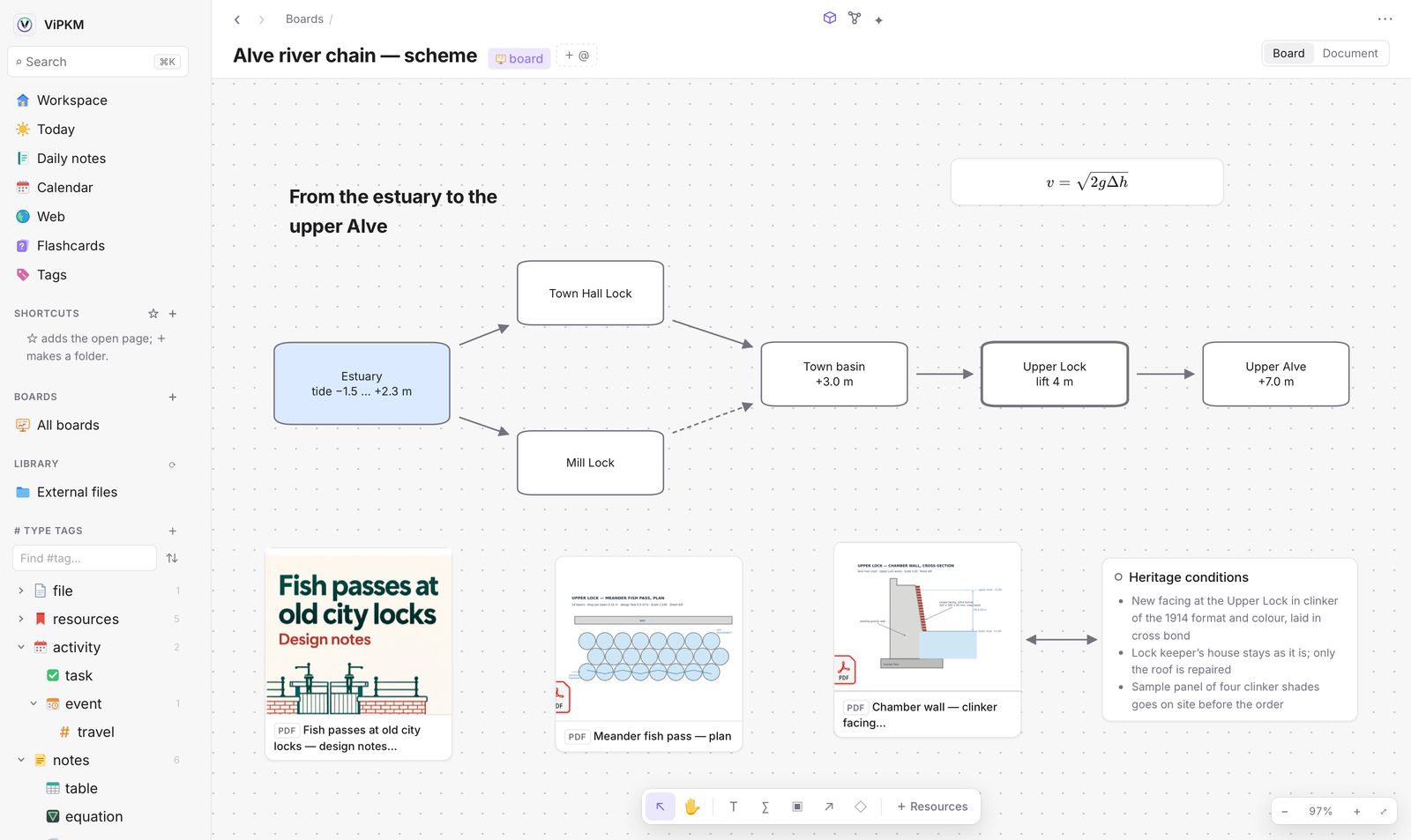
A board: the river chain from the estuary to the upper Alve as boxes and arrows, a formula, three PDFs from the library and a note card linked by an arrow
Library & readers

A library you can read, mark and cite

Bring a folder from your drive into the app: each file gets a card, a cover and a page for notes. Books and papers become resources with proper citation fields, linked to their files.

  • PDF reader: quotes and clipped figures become notes, and highlights are also written into the PDF
  • Web and video readers: save pages, capture frames with timestamps, keep transcripts
  • On-device OCR makes scanned PDFs searchable
  • Import your reference library from a .bib file and cite its entries in your notes; look up records by DOI
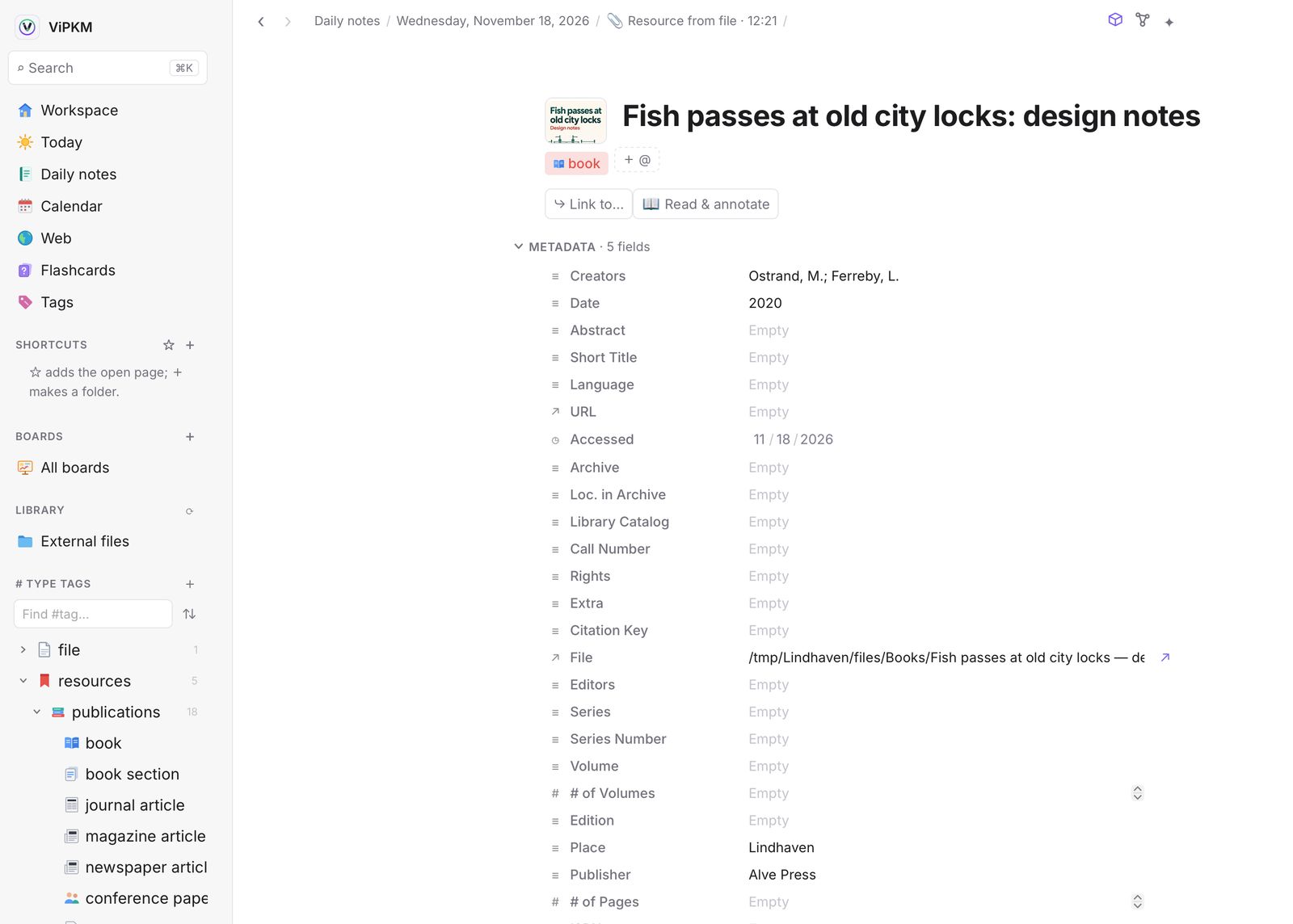
A handbook as a book resource, with its creators, date, place, publisher and the PDF it links to
Works with your Mac

Finder, File Explorer, mail and other apps — in both directions

ViPKM doesn't wall your work off from the rest of your computer. Jump from a note to the file in Finder or File Explorer and back again, link to any page or highlight from other apps, and gather files to send without moving the originals.

📂

Finder / File Explorer ⇄ ViPKM

From any file's page, “Show in folder” opens it in Finder or File Explorer. The other way round, right-click a file or folder → “Open in ViPKM” jumps straight to its page (on the Mac under Services, on Windows 11 under Show more options).

🔗

Deep links, back to the exact spot

Every quote and clip from a PDF or a web page gets its own vipkm:// link. Paste it into a mail, a task, your calendar or a launcher; opening it jumps back to the exact spot — the PDF at the highlight, the web page scrolled to the quote (on pages whose text doesn't change), a video at its moment. “Copy page link” in the page menu does the same for any page.

📦

The box

Collect copies of files and notes — click cards in any gallery, or choose “Add to box” — then start a new email with all of them attached, or drag them out from Finder or File Explorer. Your originals stay as they are; closing the box deletes the copies.

A quote and a clipped figure under their PDF; the quote has its page, comment and vipkm:// link
A quote and a clip under their PDF — the quote with its page, its comment and its own vipkm:// link back to the spot.

And much more

A document block open in the outline with its toolbar: a heading and a list of requirements
A document inside the outline, open with its own toolbar: headings, lists, formulas, tables and more, still part of your notes.

Documents inside the outline

When rows are not enough, a row becomes a full document with its own toolbar: headings, lists, quotes, code, formulas, tables, callouts and multi-column layouts. All documents are gathered under #document, and one click opens the text in your Markdown editor of choice.

Headings and quick edits

Type # to ##### and a space for headings H1–H5; select many lines and delete them in one step, with one undo.

Graph of linked pages

See your pages as dots and links in a panel beside the page, one to three steps out or everything, with previews and pictures.

Search everything

Names, notes, boards and the contents of your files — PDF, Office, Apple and OpenDocument formats — ignoring case, diacritics and script.

Sync between your computers

Keep notes, tags, boards, images and library files the same on all your computers: between Macs through your own iCloud Drive, and between Mac and Windows through a folder you already sync or your own WebDAV server, with optional encryption. Off until you turn it on.

11 languages

The interface and help are available in English, Serbian, German, French, Spanish, Russian, Ukrainian, Chinese, Japanese, Arabic and Hebrew. Your notes stay exactly as you wrote them.

Make it yours

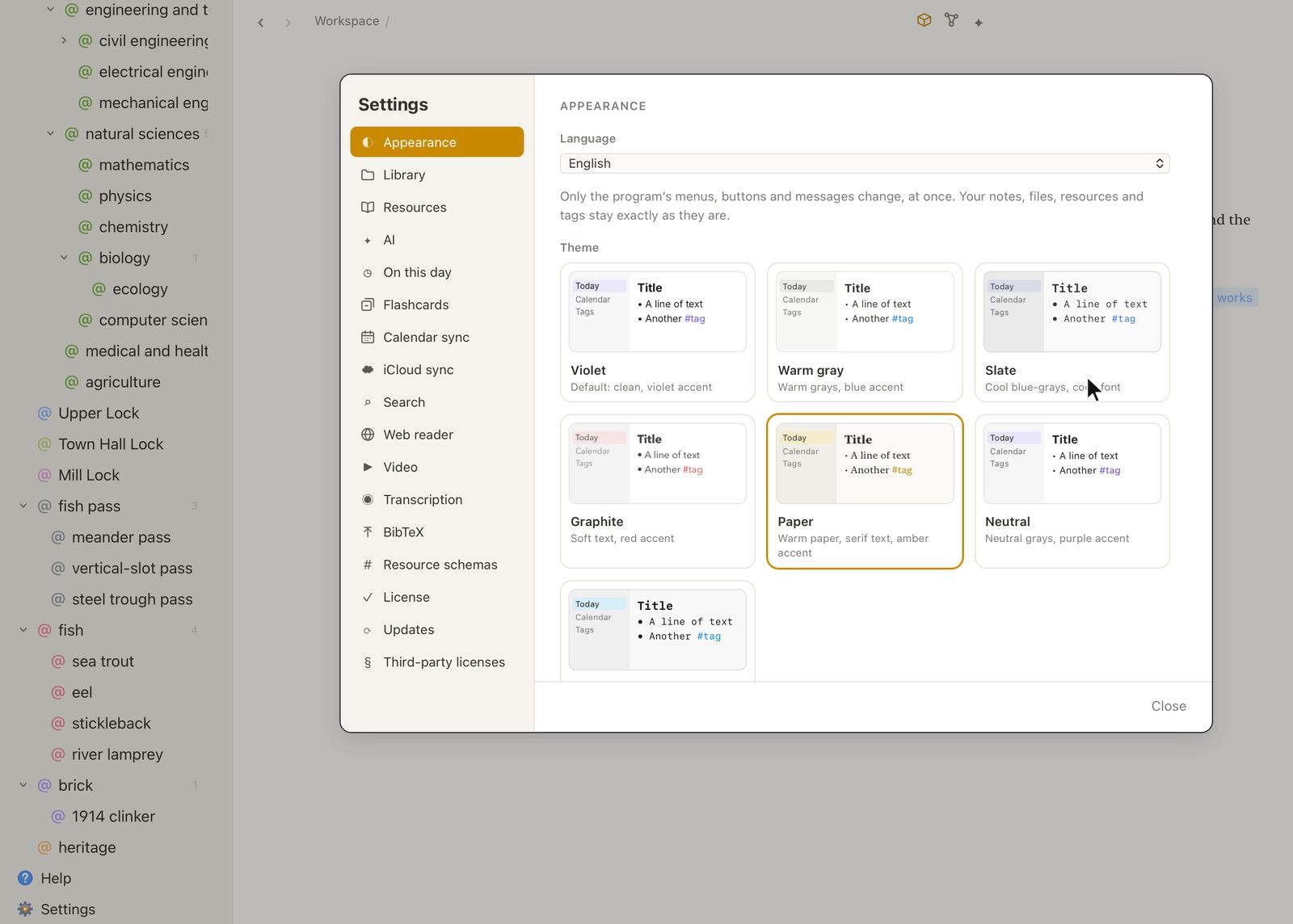
Seven themes, each in light and dark

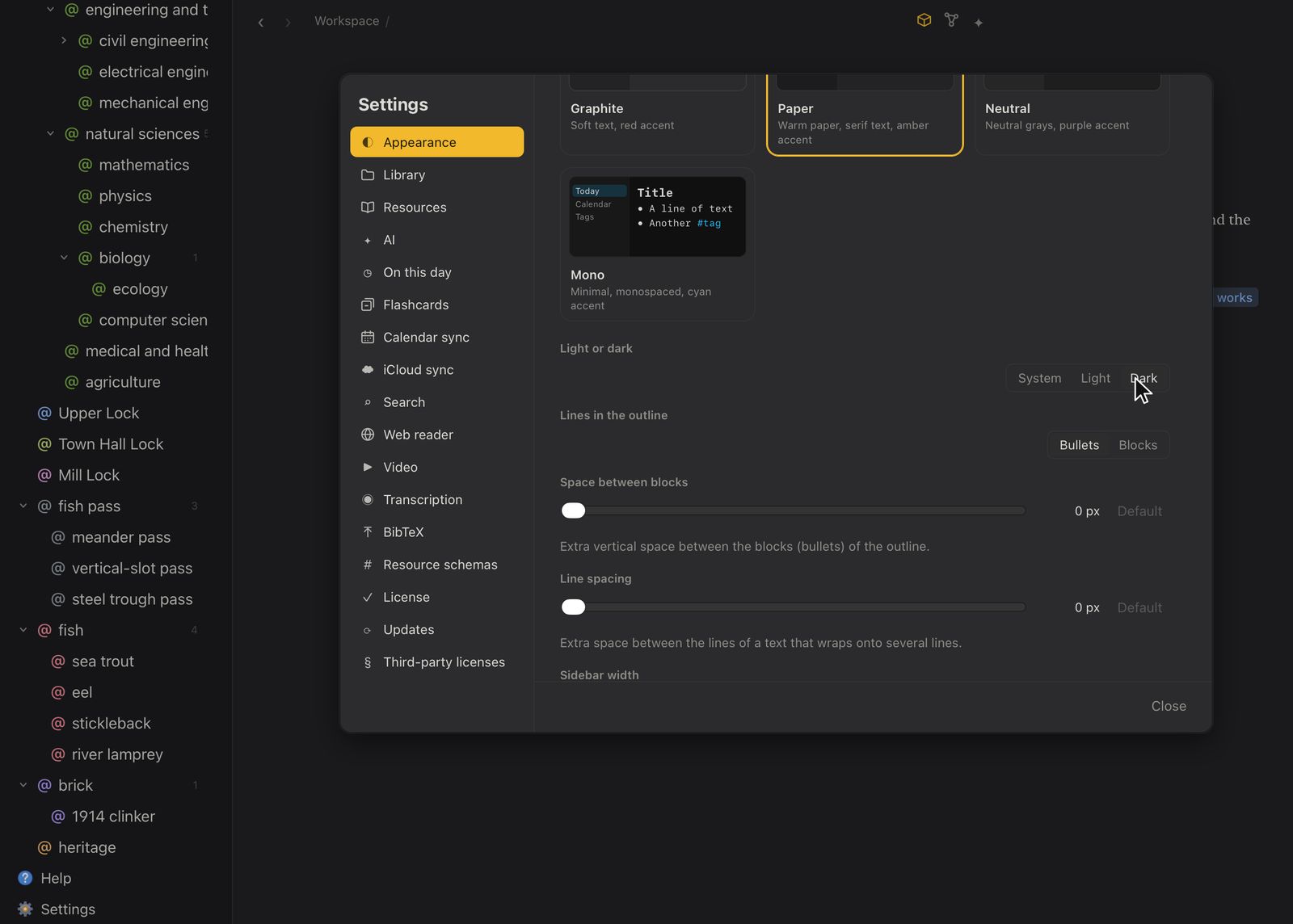
Violet, Warm gray, Slate, Graphite, Paper, Neutral and Mono — each with its own colours and fonts, from serif reading text to a monospaced code look. Follow the system's light or dark mode, or pick one. Language, layout, outline style and editor width sit right beside them in Settings, with sliders for the sidebar's text size (12–22 px) and icon size (12–26 px). The sidebar itself is in colour: every place and tag with its own icon.

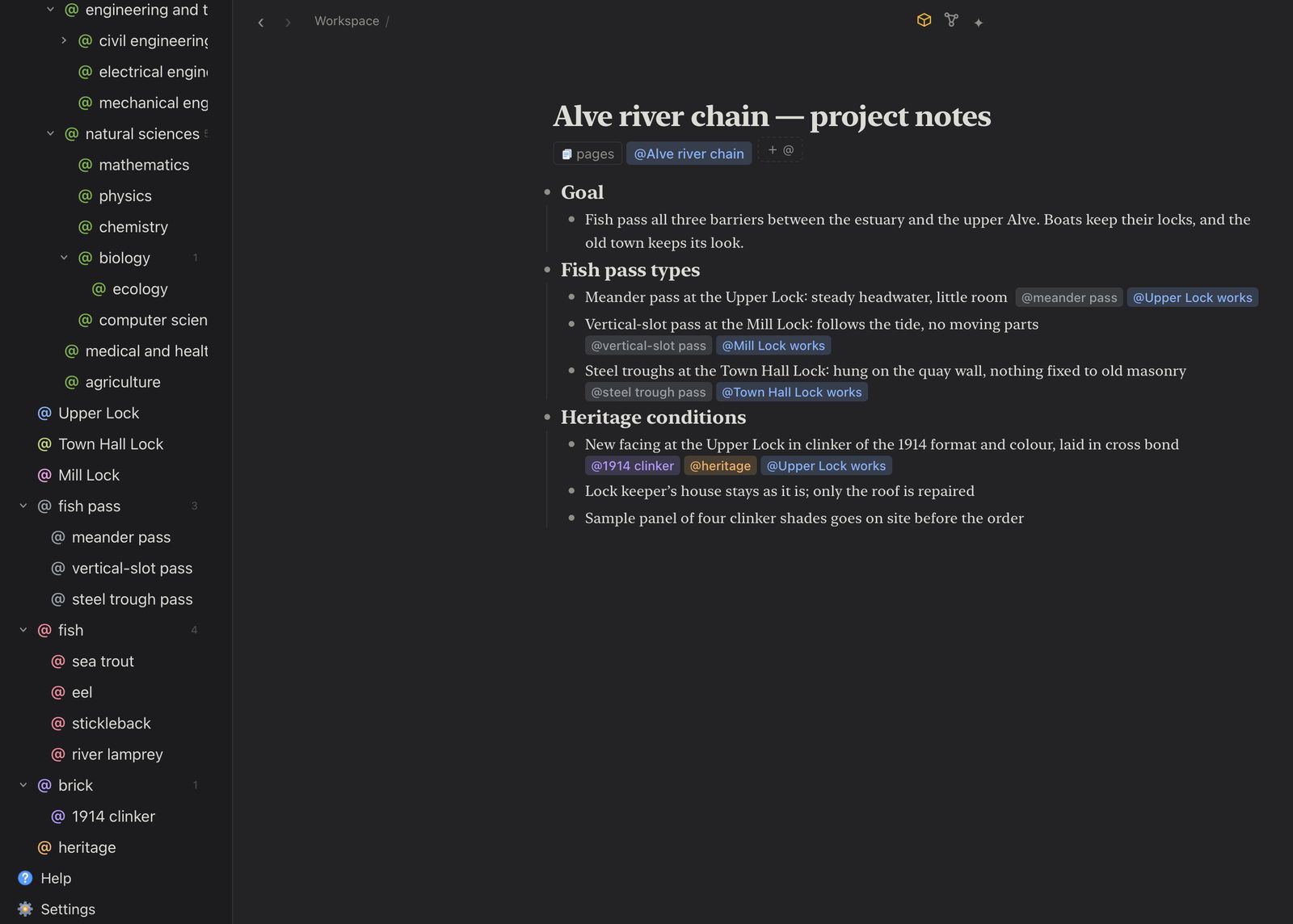
Project notes in the Paper theme, dark
Paper, dark — serif text on a dark page.
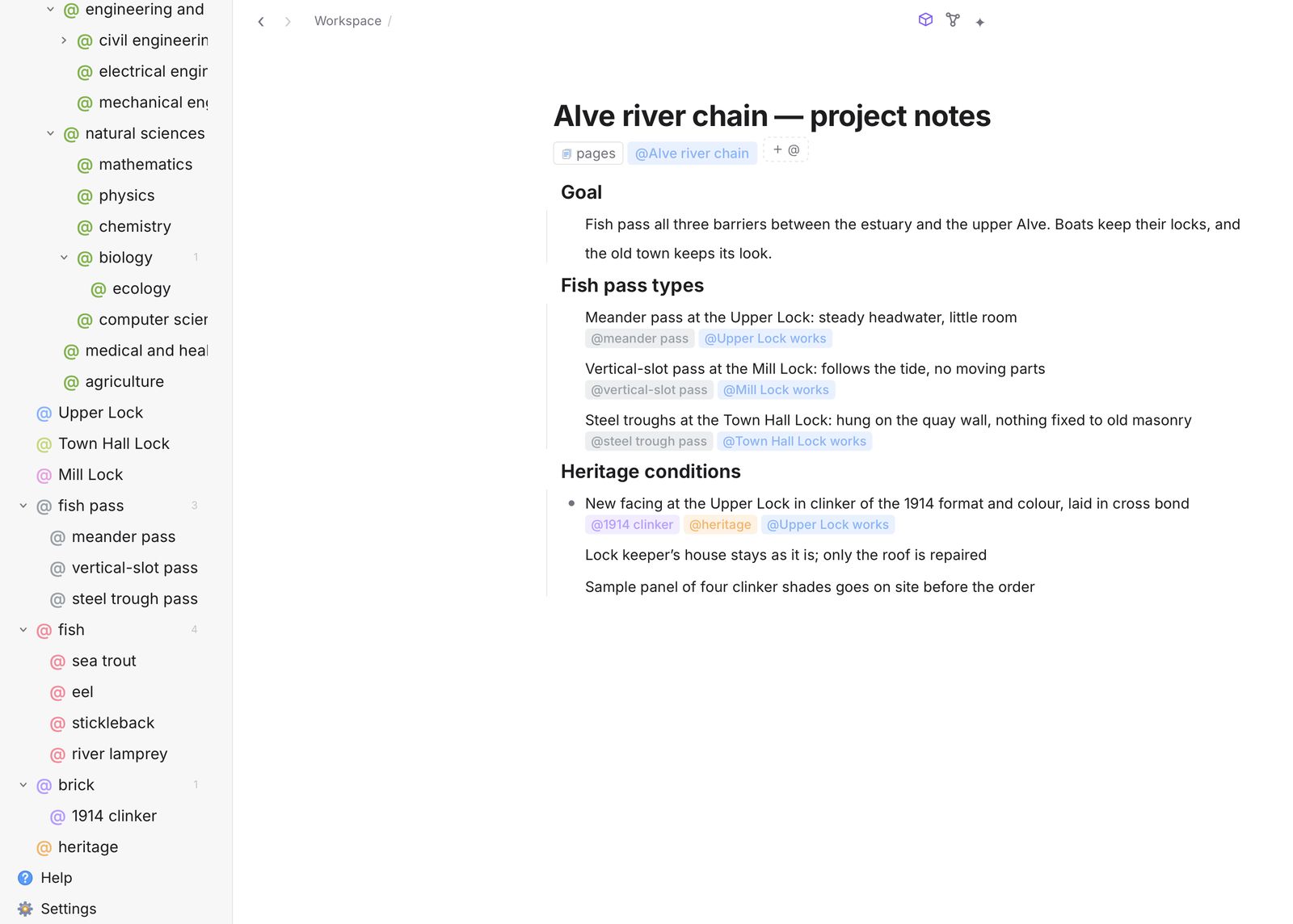
The same notes as clean blocks, without bullets
Blocks — the outline without bullets.
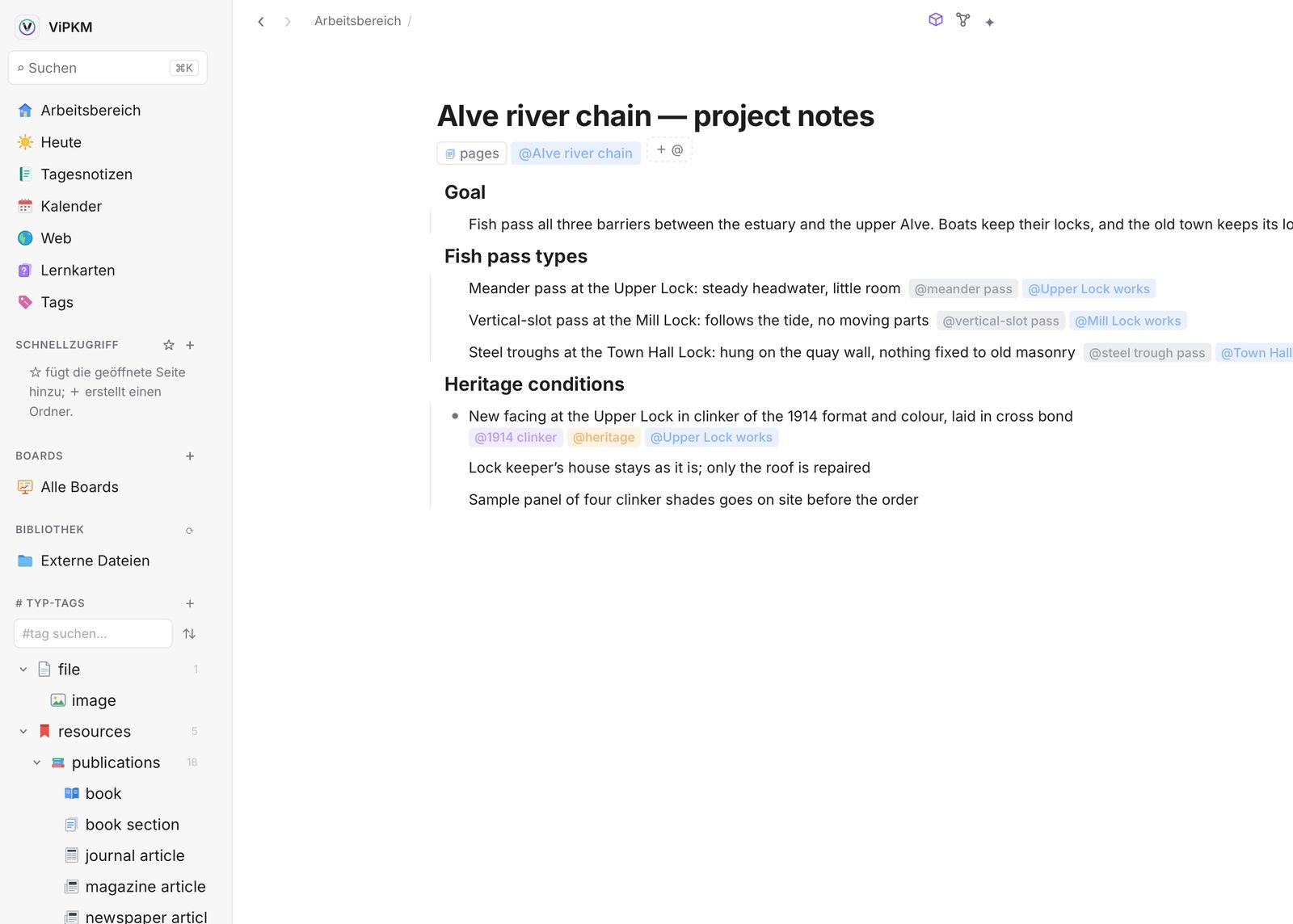
The menus in German; the notes stay as written
Deutsch — one of eleven languages; your notes stay as written.
Pricing

Simple pricing

Pay once, use it for good. No subscription and no account.

Free trial

0 € for 14 days
  • Every feature, no account needed
  • Your notes stay yours when the trial ends

The Windows installer is not signed yet, so Windows may say “Windows protected your PC”. Click More info, then Run anyway. It installs for your user only, with no admin rights.

Payments, taxes and invoices are handled by Paddle, our Merchant of Record. Prices may include VAT/sales tax depending on your country. Features that use Claude need your own Anthropic API key; that usage is billed by Anthropic, not included in the price. See the refund policy.

Details

Requires
Mac: macOS 13 Ventura or later, Apple silicon. Windows: Windows 10 or 11, 64-bit (x64); the installer adds WebView2 if it is missing.
Mac and Windows
One license covers ViPKM on both, on all your own computers. Companion apps for iPhone and iPad are planned; there are no dates yet.
Your data
Stored on your computer. Library files are read in place; scans never change them.
AI
Optional. Ask Claude, flashcard questions and resource identification use your own Anthropic API key; usage is billed by Anthropic.
Sync
Optional: between Macs through iCloud Drive; between Mac and Windows through a folder you already sync, or your own WebDAV server with optional encryption. Settings stay on each device.